
The TUI tour
The TUI is the keyboard-first half of RunWisp. It runs in a terminal, connects to a daemon — local over its Unix socket, or remote over HTTP — and lets you do almost everything the Web UI can — trigger tasks, follow logs, restart services, browse notifications — without leaving the shell.
Three ways to start it:
runwisp # spawn or attach to the local daemon, then attach the TUIrunwisp tui # attach a fresh TUI to a local daemon over its socketrunwisp tui --url https://runwisp.example.com # attach to a remote daemon over HTTPThe first form is the everyday one. The second attaches to a daemon sharing this machine’s data dir. The third reaches a daemon you don’t share a filesystem with — on another host, in a container — over HTTP; it logs in with the daemon’s password and is covered in Authentication below.
The Home page (and “Open Web UI”)
Section titled “The Home page (and “Open Web UI”)”The TUI lands on Home, with focus on the sidebar. Press
whatever key takes you to ▸ ⮕ Open Web UI:
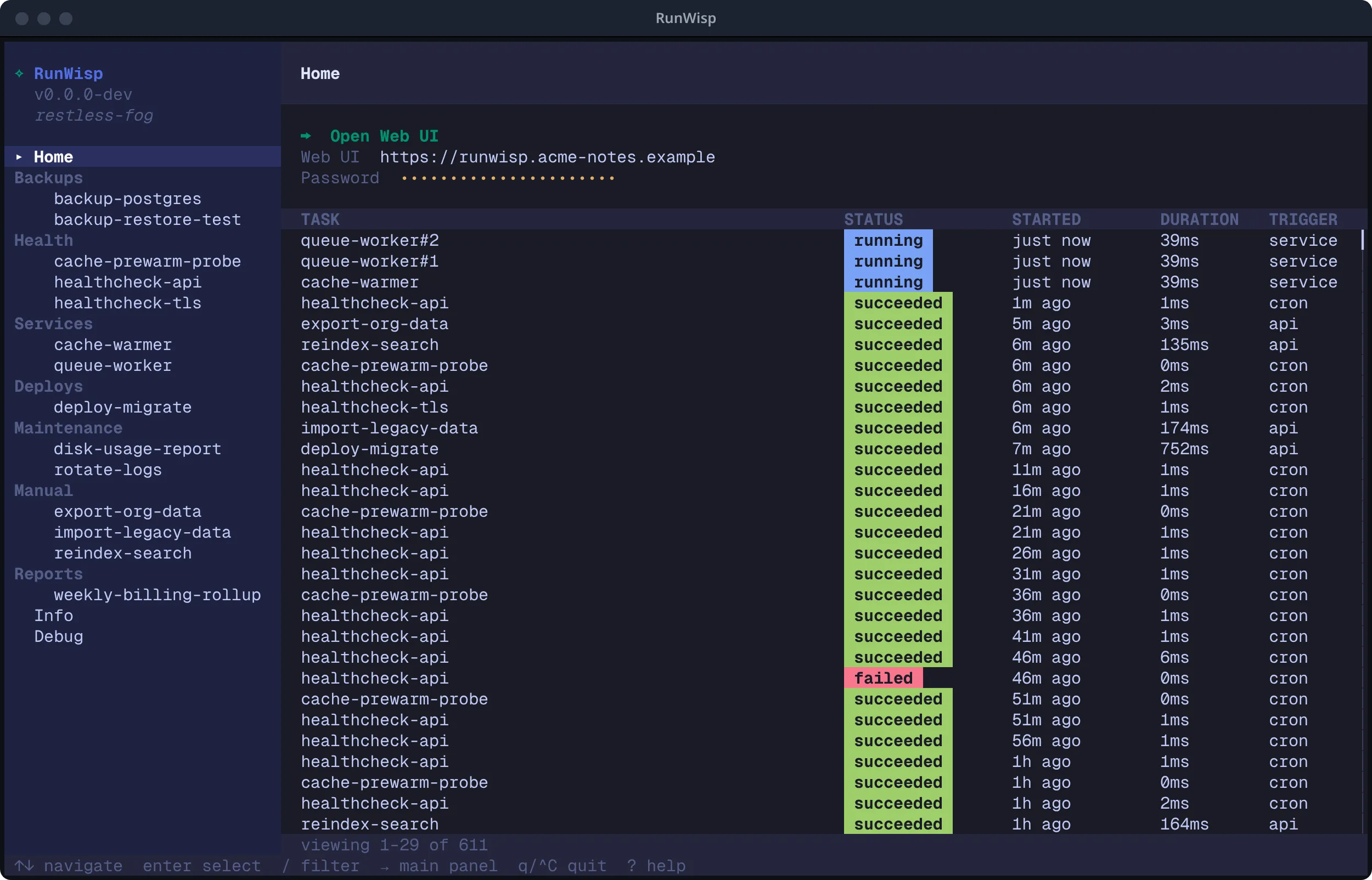
Press Enter and the TUI opens your default browser straight into the
dashboard, already logged in — no copy-pasting the password, no
lockouts from typos. On a server with no browser available, it copies
the URL to your clipboard instead so you can paste it from another
machine.
If any tasks came from a crontab a live cron daemon still owns, the
header carries a chip reading ⏸ N held by cron — `sudo runwisp takeover` .
See Held jobs.
This works for a remote daemon too (runwisp tui --url …): the TUI
mints a short-lived, single-use launch ticket from your authenticated
session and hands it to the browser. One caveat — if you’re connected
over plain http:// to a non-loopback host, that ticket would
travel unencrypted, so the TUI asks you to confirm before opening.
Over https:// (or to loopback) it just opens. The fix for the
warning is the same as for any remote access: put the daemon behind
TLS.
The other rows on Home:
- Web UI — the daemon’s URL.
Entercopies it to the clipboard. - Password — only shown when the daemon auto-generated the
password on first run.
Entercopies it.
If you set the password yourself, the password row disappears — the TUI doesn’t have your secret in plaintext form to display, so the Home page shows only the Open Web UI action and the Web UI URL.
Press n while on Home to expand the notifications panel at the
top — a scrollable list of in-app notifications with severity dots,
relative timestamps (like “5m ago”), and read-state toggling.
The shell
Section titled “The shell”There’s a sidebar on the left, the active view on the right, and a
help bar along the bottom that changes to match whatever you’re
focused on. You can see all three in the Home screenshot above. The
sidebar starts with three navigation pages (Home / Info / Debug),
then lists your tasks and services grouped by group.
The triangle marker ▸ points at whatever’s currently showing in the
right pane; the highlighted row is just your cursor — move it around
all you like, nothing happens until you press Enter.
The three pages
Section titled “The three pages”The default view. Two modes:
- Daemon overview (no task selected) — the action and field rows described above, plus a recent-activity feed across all tasks.
- Task detail (a task or service selected from the sidebar) —
schedule line, a Run Now / Restart button, and the run
history for that one task. A held task
shows
⏸ held — cron still owns this jobon its schedule line and no “Next:” time, because RunWisp isn’t the one firing it — Run Now still works. Run Now asks you to confirm before it fires. If the task declares parameters, Run Now opens a form instead — fill in the values, then submit to trigger with those inputs.
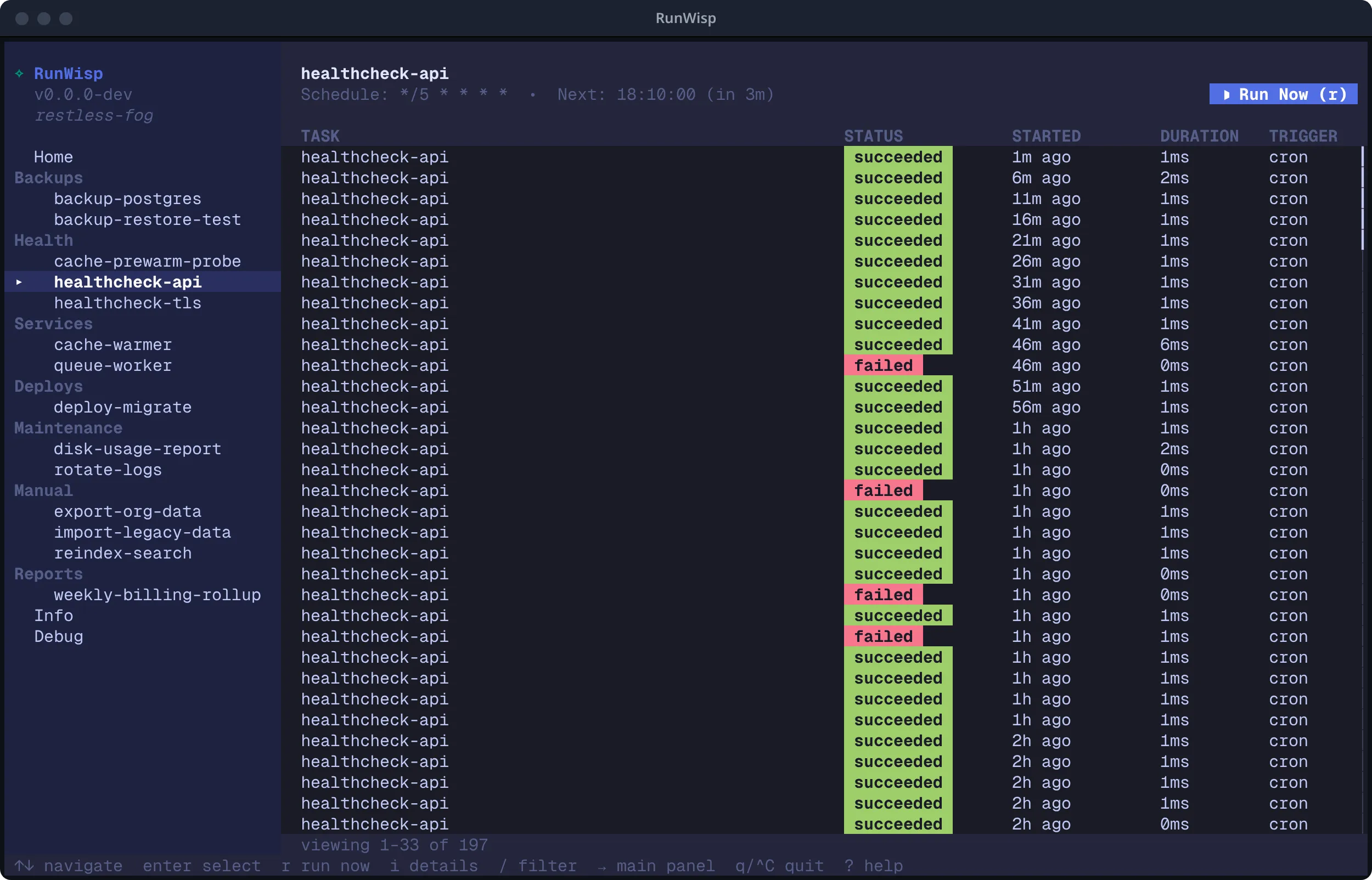
The run list is newest-first — Home/End/PgUp/PgDn move you
through the history. Press f to filter it by outcome (running /
succeeded / failed); while a filter is active, a banner under the column
header spells out exactly what you’re looking at, so you never forget
the list is narrowed. Press i on a task to inspect it — a pop-up with
the full definition and its recent health (success rate, last failure).
And when you need to tidy up, space selects runs (a selects every
run matching the current filter) so you can delete, cancel, or re-run
the lot in one go — the delete is undoable, so a fat-fingered cleanup is
a u away from coming back.
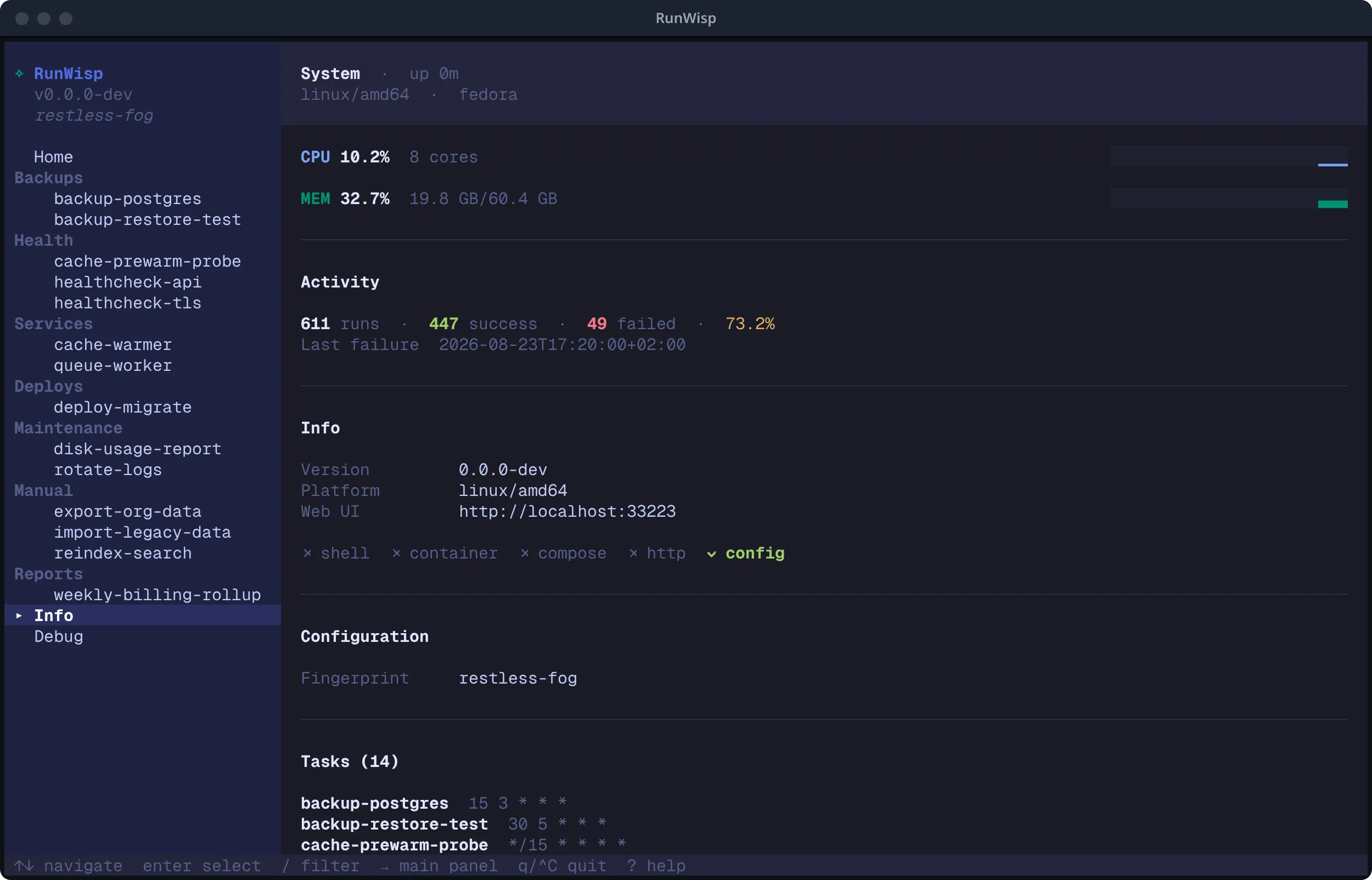
System metrics — CPU and memory sparklines, a run-count summary, and uptime. This is your “is the daemon healthy right now?” glance without reaching for a browser.
The daemon’s own log stream, scrollable in both directions. When
you’re attached to a remote daemon, this is also where reconnect
notices show up. Think of it as journalctl for the RunWisp process
itself.
Following a run
Section titled “Following a run”Enter on a row in the recent-activity list (or in a task’s run
history) opens the run detail view — log streamed live from the
daemon, line-numbered, with a header showing run ID, start time,
duration, and either a “Retry” button (for ended runs) or a
“Stop” button (for runs that are still going).
The keybindings live in the help bar at the bottom of the screen — the TUI footer is the source of truth, so look there for whatever’s currently available.
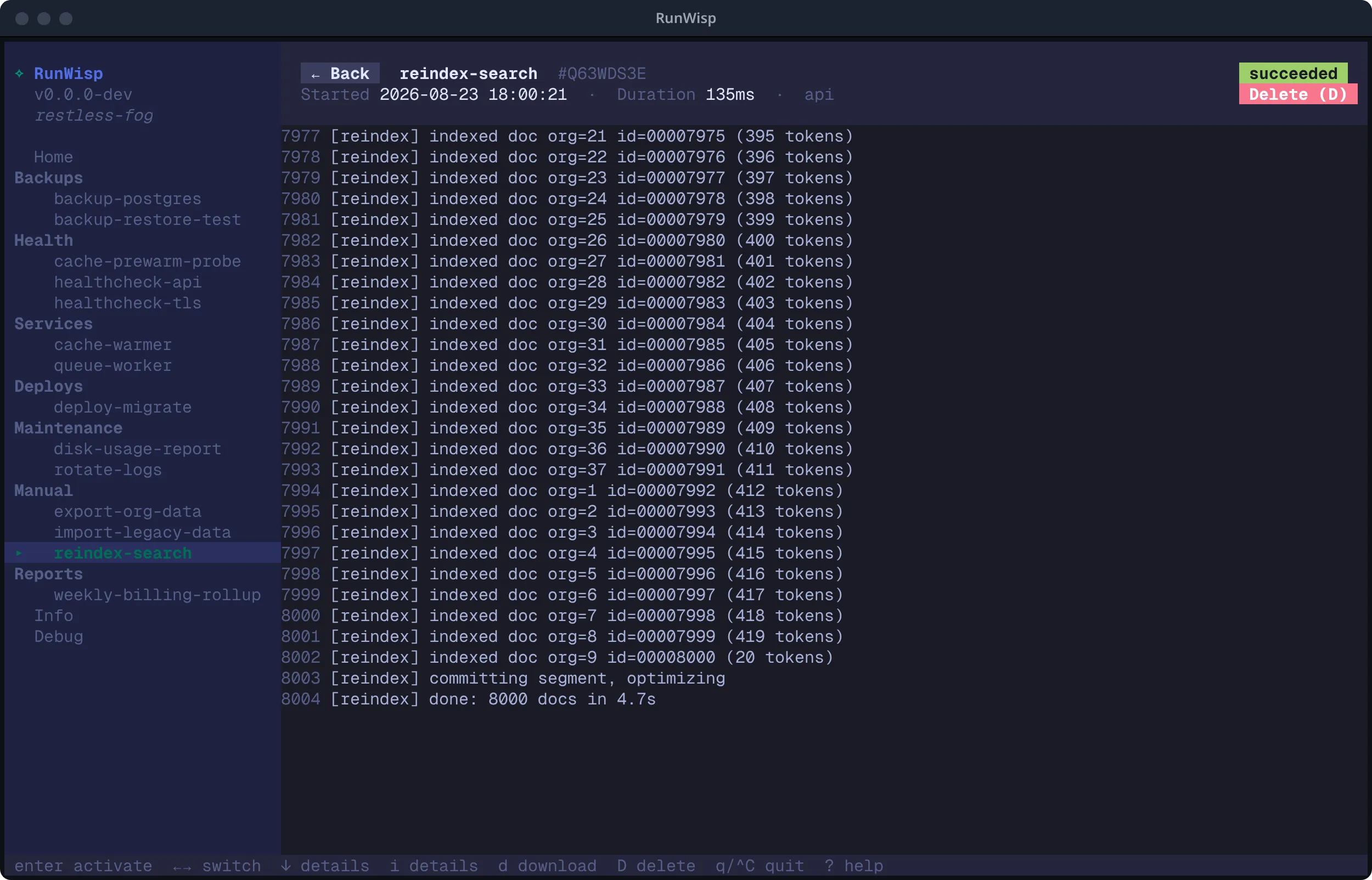
A few keys worth flagging since they aren’t obvious:
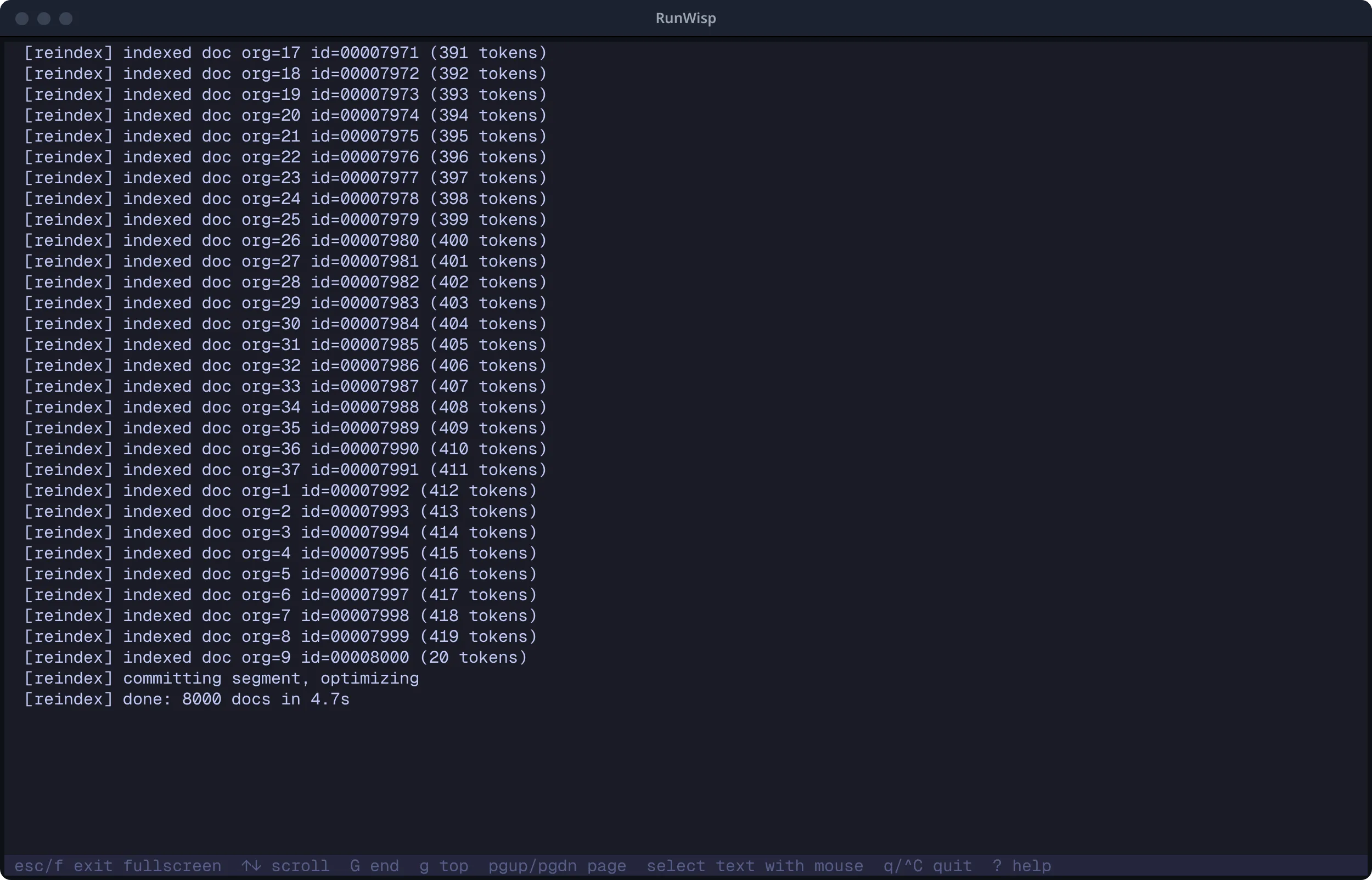
f— Fullscreen the log. Header and line numbers go away; only the raw log fills the terminal. Right move for copy-paste.d— Download the run’s full log. On a graphical session this opens your browser to the download URL; on SSH it copies the URL to your clipboard or shows it in a modal you can paste from.r/s— Retry / Stop the run, depending on its current state. Both ask for confirmation first, so a stray keypress won’t kick off (or kill) a run.i— Inspect the run: a pop-up with its exit code, trigger, retry lineage, timing, and parameter count. If the run is a retry,Enterjumps to the attempt it retried.
The log starts in follow mode — it auto-scrolls to the tail as
new lines arrive. Manual scrolling up (↑, PgUp, g) pauses the
follow; press G to jump to the tail and re-engage follow mode.
The failure path
Section titled “The failure path”Prime directive #1 is “nothing silently fails,” so it’s worth pausing on where failures actually show up in the TUI — exit code, captured output, and end reason are right up front, not buried somewhere.
Open the run detail view for a failed run and three things tell you what went wrong before you even scroll:
- The header status badge carries the end reason —
failed,timeout,crashed,stopped,skipped,log_overflow, and the rest. Each is a distinct status with its own colour, not a generic “error.” - The exit code sits in the header next to duration. Sentinel
codes are real:
-1is a skipped run that never ran (on_overlap = "skip"rejected it),-2is acrashedrun the daemon was killed during. Atimeoutshows whatever exit the OS produced when the killed process gave up — typically143(SIGTERM) or137(SIGKILL). Any other positive code is whatever the script returned. - The captured log below is the raw stdout/stderr of the
attempt — the same bytes the script wrote, line-numbered, with
ANSI colours rendered. Press
fto fullscreen it for a copy/paste. The layout is the same run-detail view shown above, just with a different status badge and exit code in the header.
The sidebar’s task entry also reflects status: a task whose last run failed shows up with a coloured marker, so a glance at the sidebar tells you which tasks need attention without opening each one.
For a task with retries, every attempt is a separate row in the run
history with its own end reason — attempt 0 might be failed and
attempt 1 succeeded. Read attempt 0’s log to find out why the first
try failed even when the retry recovered; that’s the bug-hunting use
of keep_runs.
If a run never ran at all (skipped because of on_overlap,
stopped because of on_overlap = "kill"), the row is still
there with the policy’s reason in the log and a sentinel exit code.
A skipped firing is not silence — it’s a row.
Authentication, briefly
Section titled “Authentication, briefly”Run the TUI against a local daemon (runwisp or runwisp tui) and
you’re already in — access is gated by the data dir’s filesystem
permissions, no password involved.
Connecting over HTTP with runwisp tui --url … is different: the
daemon doesn’t know who you are, so the TUI logs in with the same
password as the Web UI via the CHAP handshake. There’s
deliberately no --password flag — a password on the command line
leaks into your shell history and ps. Instead the TUI:
- reads
RUNWISP_PASSWORDfrom the environment if it’s set (the path for scripts and CI), otherwise - prompts you without echo, just once — it then caches the
session token under your user cache dir
(
$XDG_CACHE_HOME/runwisp/on Linux,~/Library/Caches/runwisp/on macOS) and reuses it on the next connect, so you’re not retyping the password or tripping the daemon’s login rate limit.
A daemon started with RUNWISP_AUTH=off
needs no password at all — the TUI checks first and connects straight
through. If the password is wrong or you’ve been rate-limited, the TUI
prints the error and exits rather than landing you on a half-working
screen. See Auth for the handshake details.
Connection-lost handling
Section titled “Connection-lost handling”When the daemon goes away (network blip, restart, hard crash), the TUI retries the connection in the background. The Debug page logs the reconnect attempt; the rest of the UI keeps showing whatever state it last had until the daemon comes back and fresh data streams in. No manual “retry” key needed — when the daemon is back, the TUI catches up on its own.
Quitting
Section titled “Quitting”Press q (or Ctrl+C). A two-button dialog asks “Keep the daemon
running in the background?” with Keep Running and Shut Down.
Esc closes the dialog without acting.
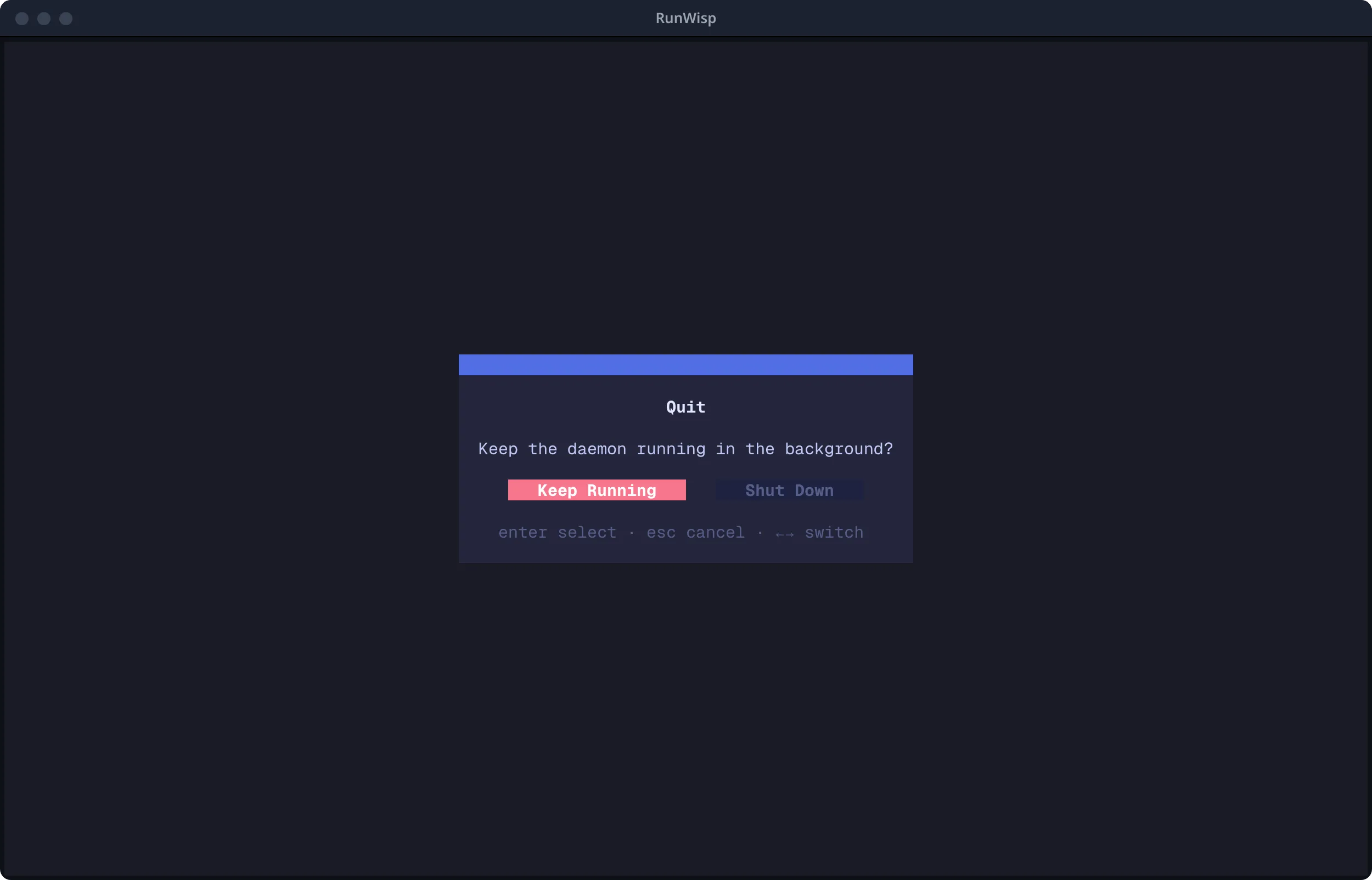
If you’re attached via runwisp tui to a daemon you didn’t spawn,
Shut Down is a no-op — the TUI never stops a daemon it’s a guest
of.
Intentional scope
Section titled “Intentional scope”The TUI is a control surface, not a config editor. It’ll trigger, stop, restart, and observe — but it won’t:
- Edit config.
runwisp.tomlis the source of truth. Open it in your editor, then pressRin the TUI (or runrunwisp reload, or restart) to pick up changes. - Set up notifications. Routes and notifiers are configured in TOML.
- Create or delete tasks. Same reason — they live in TOML.
- Manage users or roles. RunWisp is single-operator by design.